


This guide consists of the following parts:
- Publication essentials – prepare the article summary, tags, and a feature image
- Guidelines for structuring content – suggestions for creating and structuring content
- Supported media and content types – Overview of shortcodes extending markdown syntax
Create publication essentials#
The essentials include an article summary, tags, and a feature image.
You don’t need to create those at the beginning, but:
- Attempting to write an article summary early on can help you better understand how to structure your content and which mode of writing to choose, such as an overview, tutorial, or a how-to guide, etc.
- Trying to think about tags in advance can help you understand the key topics around which to structure your content.
Write an article summary#
Before you begin writing your article, it is a good exercise to summarize in one paragraph:
- The main topic of your article (1 or 2 sentences).
- What value it brings to the reader (1 or 2 sentences).
In addition to helping you better understand how to write your content, it will also help readers decide if they want to read your article as well as to set their expectations.
After you finish writing, revisit your summary to see if it needs any adjustments. You might be surprised by how the focus of your writing can shift during the process without you realizing it.
Tag the content#
Assign tags to your content following the guidelines in Tagging content.
Prepare a featured image#
A featured image appears above the article’s title. A nice and relevant image attracts readers like a magnet, that is why consider giving more thought to it.
Here are the guidelines for preparing the featured image:
- Image size should be 1200 x 600 pixels
- This image will be cropped in 2 different sizes as seen in the template below
- You can place the template over your image with transparency to ensure the following:
- If you use text in your image, it should be within the text safe space
- Any important elements should be clearly seen in both cropping sizes
- Your featured image should be in WebP as requested in Use WebP for raster images
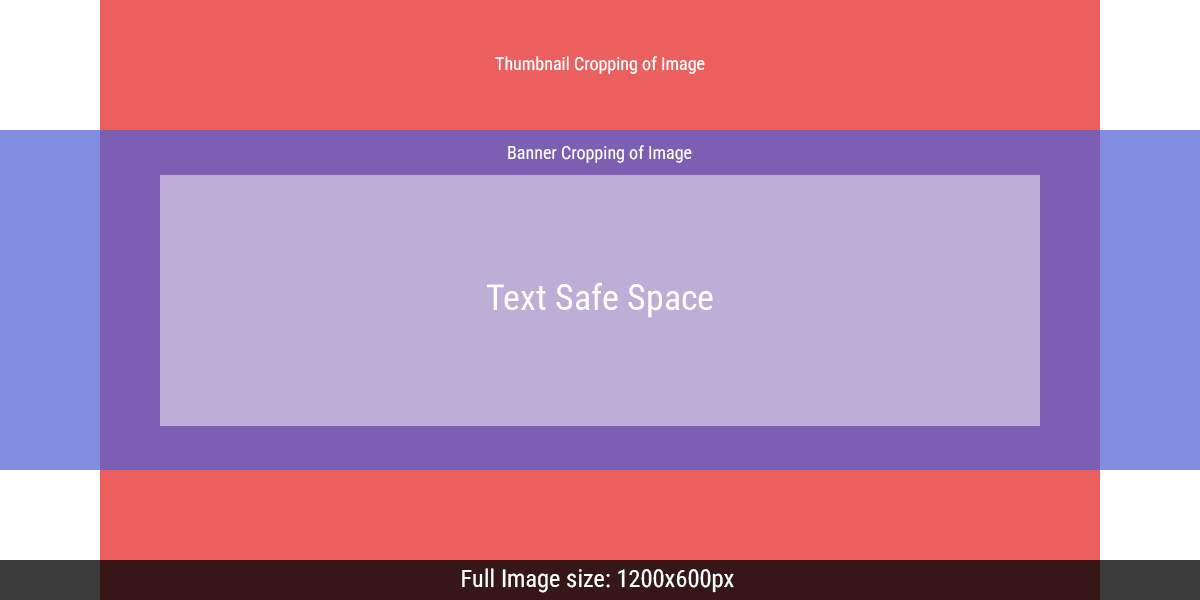
Feature image template
A featured image can be added in the following ways from the highest to lowest priority:
- Article-specific image file: In the same folder as your article’s
index.md, place your featured image and make sure its file name includes the substringfeature, for example:featured-lcd-screen.webp. - Image from a URL: In the article’s front matter, add the parameter
featureimageand assign a URL to it, for example:This parameter is from Blowfish theme’s Front Matter.featureimage: "https://espressif.com/logo-guidelines/chinese-horizontal-logo.png" - Generic image file: If you have no chance to create your own image, try to find a generic image in
assets/img/featuredand assign the path tofeatureAsset, for example:featureAsset: "img/featured/image.webp"
Follow the guidelines for structuring content#
This is totally up to you how you write the content as long as it is valuable for the community.
At the moment, we are systematizing typical patterns of how developer portal articles are usually written. As a result, we will publish recommended article recipes in the near future.
Review supported media and content types#
Apart from the usual content types supported by markdown, such as visuals or code blocks, you can use other content types enabled by Hugo shortcodes. This section briefly introduces the most relevant shortcodes implemented on the Espressif Developer Portal.
In addition to that, you can also use the standard Hugo embedded shortcodes and Blowfish theme shortcodes. But please note that Hugo and Blowfish versions (see the badges in the project README) might lag behind the latest ones. Make sure that you check the documentation for the respective versions.
If you need other content types or shortcodes implemented, either create a discussion on GitHub or offer a PR with the required functionality. It will be very much appreciated!
Alerts#
To add alerts, such as notes, caution or warning admonitions, use the following shortcode:
{{< alert >}}
  Use alerts only when they are really needed.
{{< /alert >}}
You can also change its parameters:
{{< alert icon="circle-info" cardColor="#b3e0f2" iconColor="#04a5e5">}}
  Now you see a customized icon, its color, and the alert color.
{{< /alert >}}
Diagrams as code#
A number of Diagrams as code formats are supported, including Mermaid.
For example, a Mermaid diagram is used on this page (see also the raw version).
Images#
Adding images#
Please avoid using a standard markdown syntax for adding an image:

Instead, use the figure shortcode provided by the Blowfish theme that is used on this website. It offers more control over image display and render. An example of a shortcode is given below, but more parameters are available:
{{< figure
    src="image.webp"
    alt=""
    caption=""
    >}}
By default, the Blowfish theme optimizes the images for different device resolutions. For some images, the processing adds grey background. To fix it, disable the processing of such images by adding the parameter default="true" to the figure shortcode.
Use WebP for raster images#
For raster images, please use the WebP format only. The Developer Portal’s CI blocks the images in PNG anf JPEG format.
The WebP format was chosen for the following reasons:
- The images in WebP are comparable in quality to PNG and JPEG but are 5-7 times smaller in size
- Smaller image size is important
- It prevents the git repo from growing out of proportion very fast
- It allows serving web pages faster
To convert your images to WebP, use one of the following ways:
Use imagemagick:
convert image.jpg -quality 60 image.webpUse cwebp:
cwebp -q 60 image.jpg -o image.webp
The quality value 60 usually yields good results. For very good quality, you can use the value 80.
Animated images#
Including an animated screenshot of some action done in GUI can sometimes replace a thousand words.
You can do this, but please don’t use the GIF format for its bad compression rates. Instead, create a .mp4 file and further compress it with FFmpeg if needed.
After that, include your .mp4 video using this shortcode:
{{< video src="video/my-video" >}}
You might also find useful Asciinema casts and Video.
Code block#
A code block can be inserted using the standard markdown syntax – backticks.
Hugo also provides the highlight shortcode which offers additional features, such as numbering and highlighting lines:
| |
Code blocks with tabs#
Tabbed code blocks look neat:
Linux code block
Update homebrew, then run:
macOS code block
At the same time, the markup is very simple:
{{< tabs groupId="config" >}}
  {{% tab name="Linux" %}}
```md
Linux code block
```
  {{% /tab %}}
  {{% tab name="macOS" %}}
Update homebrew, then run:
```md
macOS code block
```
  {{% /tab %}}
{{< /tabs >}}
Some explanations:
- Use the
tabsshortcode to create a tabbed code block - Use the nested
tabshortcode to create as many tabs as you need - Within a tab, place any markdown content you want, it will be rendered like any other markdown content
For a real example, see this page.
As you can see, the tabs shortcode has the parameter groupId. It creates association between all tabbed code blocks bearing the same groupId on a webpage. Once you choose a certain tab, all associated code blocks will switch to the same tab. It can be useful in tutorials covering multiple operating systems, programming languages, etc.
You can also easily indent a tabbed code block, by preceding the tabs and tab shortcodes with the required number of spaces. Here is the example of the indented tabbed code block.
Asciinema casts#
Asciinema allows you to record terminal sessions using a lightweight text-based format.
If you want to use an asciinema cast in your article, see asciinema casts.
Video#
To embed a video in your article, upload it to a video streaming platform such as YouTube and use the YouTube shortcode provided by Hugo to include it in your content. If you don’t have your own YouTube channel, we can upload your video to ours.
If you give your consent and share the video file with us, we can also upload it to BiliBili to make it accessible in more geographic areas.
GitHub card#
The Github Card shortcode adds a card with information about the linked GitHub repository.
Dynamic content#
If your page is going to be updated frequently, consider implementing injection of dynamic content. Usually, it is used for product status pages, such as ESP32-C61 status.
For more information, see Dynamic content.
Next step#
Next article → Validate and publish content
Back to the Contribution guide